
Service Provider with AWS Private Link
We’ll use this tutorial from Cloud Mastery Bootcamp to connect two AWS VPCs via privatelink. The first is the service provider vpc, while the other is the service consumer vpc. For clients, we’ll use the typical VPC.
You can safely link your virtual private clouds (VPCs) to outside services with privatelink, giving the impression that the services are a part of your VPCs. the amazing feature? It is not required to use complicated setups or internet gateways. This suggests that you are free to decide precisely with whom your virtual private computers can interact.

Build the VPC for the service provider
We will then construct the second VPC for a service provider.
1. Navigate to the Create VPC button on the VPC console.
2. A new page with some alternatives to think about will be shown to you. Modify the subsequent choices:
3. Choose “VPC and more” under “resources to create.”
4. Replace “name-tag-auto-generation” with “ServiceProvider” in the name.
5. Choose a pair of private and public subnets.
6. Choose “None” to enable no VPC endpoints. Click “Create VPC” after leaving all other settings unchanged.
Launch a NAT Gateway
In order for the service provider instances to get the web server files from the internet,
we require a NAT gateway.
1. Choose “NAT gateways” from the VPC management panel, then click “Create NAT gateway.”
2. Type “SP-NAT” as the name.
3. Choose a public subnet located in the us-east-1a AZ and the ServiceProvider VPC for the subnet.
4. Select “Elastic IP Allocation.”
5. Select “NAT gateway creation.”
Update the Route Table
To point to the NAT gateway, the private subnet route tables need to be modified.
1. Choose “Route tables” in the VPC administration console, then the “ServiceProvider-rtb-private1-us-east-1a” route table.
2. Select “Edit routes” and “Routes.”
3. Select the NAT gateway as the target and click “Add route,” using 0.0.0.0/0 as the destination. This is how it ought to appear:

4. Proceed with the previously mentioned steps for the “ServiceProvider-rtb~private2-us-east-1b” route table after saving the changes that were made.
Create the first EC2 instance for a service provider
The EC2 instances that will be positioned behind the load balancer will then be constructed.
1. Select “Launch instance” from the EC2 console.
2. Continue scrolling down and refer to your instance as “First Service Provider Instance,” leaving the instance type and AMI set to default.
3. Decide on a key combination that you can use.
4. Verify that you have selected your “ServiceProvider” VPC under “Network Settings” and that your subnet is “ServiceProvider-subnet-private1-us-east-1a.”
5. Create a new security group called “ServiceProviderFullAccess” and use the same name in the description to grant full access via SSH and HTTP. It ought to appear like this.

6. Proceed to scroll down and, under Advanced Details, enter the code from the first-service-provider.md file into the User Data entry box:

7. Select “Launch instance.”
Build the second EC2 instance for the Service Provider.
The second EC2 instance, which will be installed behind the load balancer, will then be constructed.
1. To start the second instance, proceed exactly as we did with the first, but make the following adjustments:
2. Make reference to the instance as “Second Service Provider Instance.”
3. Open the EC2 instance under “Service Provider-subnet-private2-us-east-1b” and use the second-service-provider.md file’s code to copy and paste it there:

Create the Balancer
The load balancer that will be positioned in front of the instances will then be constructed.
1. Scroll down the page, select “Create Load Balancer,” and then click on the load balancer icon on the left.
2. Choose the Network Load Balancer and give “ServiceProviderNLB” to the NLB.
3. Verify that the marking reads “internal.”
4. Choose the Service Provider VPC by scrolling down and checking the boxes for us-east-1a and us-east-1b. Be careful to choose the PRIVATE subnets for each AZ.

5. Select “Create Target Group” under “Listeners and Routing.” A new page should open.
6. Click “Next” after naming the target group “ServiceProviderTargetGroup” and leaving instances under target type.
7. Click the “include as pending below” button after checking the boxes next to both instances.
8. Select “Create target group.”
9. At this point, we can return to the NLB page, refresh the target group, and view the recently formed new target group. Make the load balancer.
Create the Consumer EC2 instance
The instance from which we will access the Service Provider instances via the NLB will then be built.
1. Launch an EC2 instance using the same procedures as in step 2, but with the modifications listed below:
2. Rename your instance of EC2 to “ConsumerEC2.”
3. Select the standard VPC and make a new security group called “SSH” that has complete SSH access.
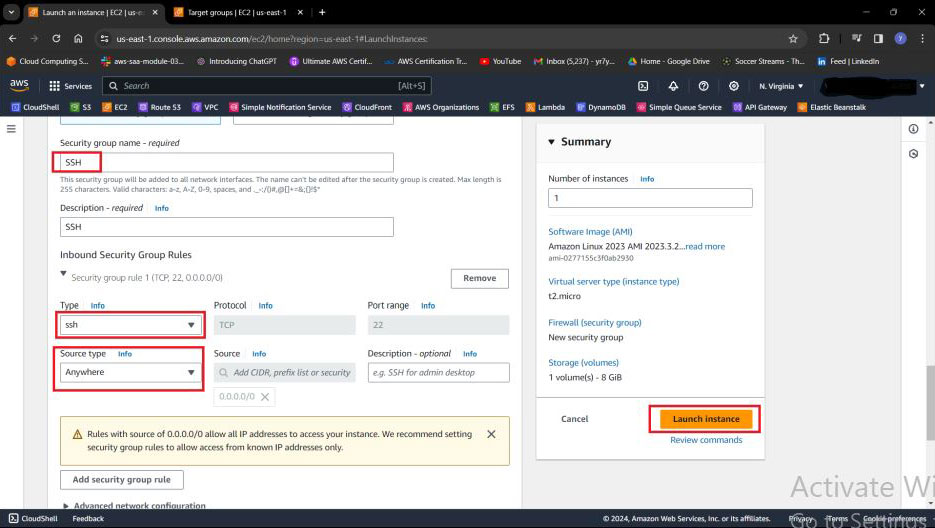
4. Set up the instance in the public subnet us-east-1a.
5. Start the instance.
Create the Endpoint Service
To expose the Service Provider service to the consumer VPC, we will then establish the endpoint service.
1. Open the VPC console, navigate to “Endpoint services,” and select “Create Endpoint service.”
2. Dial “ServiceProviderEndpoint,” the endpoint service, and then scroll down to check the box to attach the NLB.

3. Turn on IPv4 under support IP addresses.
4. Click Create Service.
Create the interface endpoint
We will then set up the endpoint service.
1. Open the VPC interface and select “Security Groups” first. To create a security group.
2. Select the “FullAccess80” security group and add any information to the “description” column.
3. Select the default VPC and allow remote access via port 80.

4. Select “create endpoint” after going to “endpoints” in your VPC console, which is next to “endpoint services,” which you were just viewing.
5. Select “other endpoint services” after calling the endpoint “ServiceProviderEndpoint.” Enter the service name that we just copied into the box below to locate the service, then click Verify

6. Choose the default VPC in which the consumer instance was launched, pick both AZs, pick both public subnets from the drop-down menu, and check the “IPv4” box

7. Click “create endpoint” after selecting the Security group (FullAccess80) that we previously built.
8. Return to Endpoint Services, highlight the Service Provider Endpoint, choose it under “Endpoint connections,” and then accept the endpoint connection request by using the “Actions” menu.

Open the consumer EC2 instance and log in
It’s test time now!
1. Go to the EC2 console, choose “consumerEC2,” and click Connect. To access the command line on your EC2 instance, click Connect again on the following screen under EC2 instance connect.

2. On the ‘Endpoints’ page of the VPC management console, select the endpoint and copy one of the endpoint DNS names.
3. Type “curl http://ENDPOINTDNS-NAME” from your instance’s command line (be sure to paste the DNS name from the previous step).
4. You should see back a response similar to this:
