
Advanced Request Routing and Load Balanced Architecture
As part of the Cloud Mastery Bootcamp projects. A basic website is created and hosted on EC2 behind an Application Load Balancer. Next, information in the host header or URL path will be used to configure host-based and path-based routing rules.
By using information in the host header to route to a separate group of EC2 instances or containers, host-based routing enables you to route to several domains on a single load balancer. Another name for path-based routing is URL-based routing. According to the load balancer’s specified rules, the Application Load Balancer will route the requests to the designated destinations. First, we’re going to do this.
Make the S3 bucket and add the code to it.
Uploading the code into an S3 bucket is the initial step in creating the websites.
1. Select “Create Bucket” from the S3 console.
2. To make the bucket globally unique, we will call out “advanced-request-routing-7” with a random number at the end. We will be referring to the bucket name again soon, so make a note of it.
3. After swiping down, select “Create Bucket.”
4. Upload all required files, excluding user data and bucket permissions.

Create your security group.
The Security Group for your EC2 instances needs to be created before in the second step.
1. Open the EC2 interface and navigate to the “Network Security” section. Scroll down to the “Security Group” column.
To create a security group, click. We’ll refer to it as “WebsiteSG.” Add “WebsiteSG” to the description area as well.
2. Just add one rule under “incoming rules”:
3. The source of this HTTP rule is “Anywhere IPv4”. Establish the Security Group

Get the Red EC2 instance started.
Next, we’ll start the “Red” EC2 instance and verify if it runs successfully.
The code was obtained from S3.
1. Select “Launch Instance” from the EC2 console.
2. Give the first instance the name “Red.”
3. After choosing the AMI, choose “t2.micro” under “Instance type.”
4. Proceed without a key pair by selecting the default option under “Key pair.”
5. Choose the subnet us-east-1a under “Network settings” and choose the security group you already created.
6. Select “Create a new IAM profile” under “IAM instance profile” after expanding “Advanced Details.”
7. A fresh tab will appear. Press “Create Role.”
8. Choose “EC2” under “Common Use Cases” and click “Next.”
9. Select “Create Policy” and proceed to the JSON area. In the code box, copy and paste the code from the bucket-permissions.json file, substituting
“advanced-resquest-roucting-7” with The bucket you just created ARN.
10. Choose Review Policy > Create Policy > Give it the name “mys3to3c2policy.”
11. Return to the role creation screen, pick the newly created policy, and refresh the policies. Select “mys3to3c2role” and click “next.” Refresh the IAM instance profile, find the role, and click attach after returning to the launch instance page.
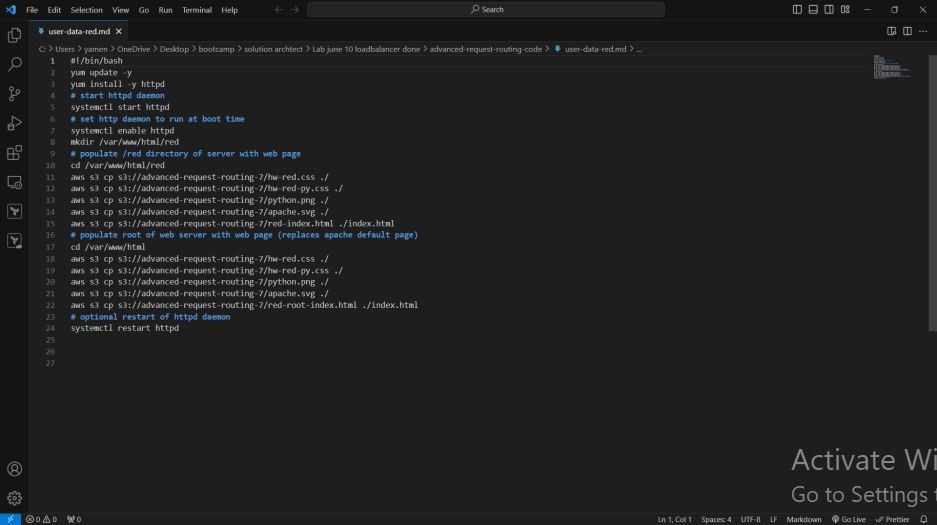
13. Next, enter the user data in the “User data” area by copying it from the “user-data-red” file. It ought to resemble the picture down below. Additionally, you must change the user data’s “advanced-resquest-roucting-7” name to the S3 bucket’s name.
14. Create the instance.
15. To build the Blue instance, use the blue user data (user-data-blue) and use subnet us-east-1b by following the exact same steps.
After that, you should be able to browse the webpages generated on each EC2 instance by obtaining the public IP address from either instance. To have the custom web page returned, you must append /blue and /red to the relevant instance.


Turn on route-based routing.
When we use path-based routing, we input the path to our URL, and the load balancer uses the rules we establish to determine which target group to send the request to. This is how the architecture appears:

Create your target group.
The first step in putting Path-based routing into practice is to identify your target groups; you need a minimum of two target groups. Take these actions:
1. Select the “Create target group” option after accessing Target Groups under Load Balancing.
2. Make two target groups, labeling one “Blue” for blue targets and “Red” for red targets.
3. Keep everything at default, changing only the target group names to “Red” or “Blue” and the health check to:
a. Use the path /red/index.html for Red.

b. Use the path /blue/index.html for Blue.
4. After registering the correct instance (in this case, Red), be sure to choose “include as pending below”.
Build the application load balancer
Making the Application Load Balancer is the next stage.
1. The Load Balancers link is located on the left side of the EC2 dashboard.
2. Select the “Application Load Balancer” by clicking “Create Load Balancer.”
3. Leave the scheme set to Internet Facing and give the load balancer the name “LabLoadBalancer.”
4. Choose the subnet mappings for both us-east-1a and us-east-1b. As a result, traffic can be routed across instances located in various AZs.
5. Select the WebsiteSG Security Group, which is the same as before.
6. Select the listener and routing in accordance with the picture below;
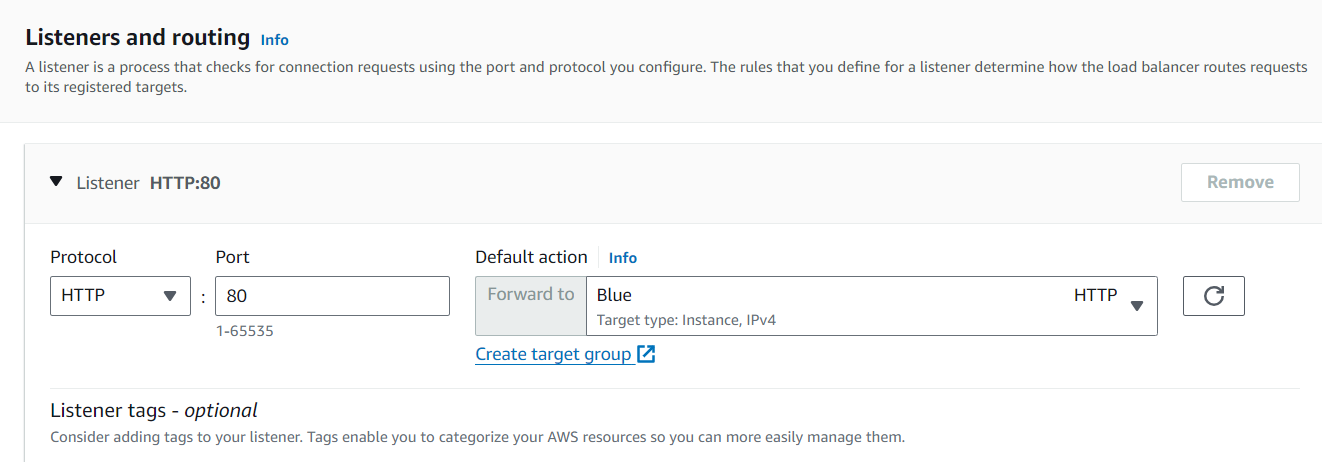
The routing rules will be configured at a later time.
7. Select “Create load balancer” and let it transition from “Provisioning” to “Active” over a few minutes.
8. After it’s operational, choose the first listener under Listeners, then click Rules and Manage rules.
9. You can either name the rule or leave it blank, in which case press next. Press conditions, select the path as the condition, and enter /red* as the value. Press the forward target group, select red, and press next. set the priority to 1, move on, and then produce


10. After copying the DNS name from the Application Load Balancer and appending either /blue or /red to the URL, we can test the load balancer’s path-based routing and observe what happens. We added various colored custom web pages to our instances; it should look like this.


Enable Host-based Routing
With host-based routing we will enter a subdomain to the domain name and the load balancer will route the request to the appropriate target group based on the rules we create. The architecture looks like this:

The forwarding rules must be established first. To set up host-based routing, you must have a minimum of two target groups.
1. Return to the listener by navigating.
2. On the “Rules” tab, select “Manage rules.”
3. Delete the previously generated path-based routing rules.
4. Press the “+” sign and then “Insert Rule.”
5. then add a rule. under rule condition type choose host header. under rule type put red.learningawswithlab.net. set the priority to 1 then create a rule. do the same thing for the blue one except add blue.learningawswithlab.net.
Configure Records in Route 53
This process requires setting up the load balancer as the destination and creating the necessary subdomain DNS entries in Amazon Route 53.
1. From the administration console, open the Route 53 dashboard. Under hosted zones, locate your public domain name. After you click on it, choose “Create Record.”
2. Add the following information to this record:
red or blue subdomain
Type of record: Here, choose the A kind.
Value/Traffic Direction to:
‘Alias to Application and Classic Load Balancer’ should be selected.
Choose the N region.Virginia
Choose the load balancer we created earlier as the target; everything should look like this.

3. In the end, select “Define Simple Routing.”
4. Verify that you have one DNS record for each of the red and blue subdomains by going through the previously mentioned procedures again.
5. The DNS records should resemble this:

6. To verify that everything is operating as it should, launch a web browser, copy the load balancer’s DNS name, and add Red or Blue to it as shown below:

