
Building a Serverless Text-to-Speech Application with Amazon Polly
You create a serverless application, which eliminates the requirement for provisioning, patching, and scaling on servers. This is handled automatically by the AWS Cloud, freeing you to concentrate on your application.
The program offers two ways to send data: one to retrieve post details (including a URL to the MP3 file saved in an Amazon S3 bucket) and another to send information about a new post that has to be converted into an MP3 file. Through Amazon API Gateway, both techniques are available as RESTful web services.

When the application sends information about new posts:
1. The RESTful web service that Amazon API Gateway exposes receives the information. A static website hosted on Amazon S3 calls this web service.
2. The process of creating MP3 files is started by the Amazon API Gateway through an AWS Lambda function called New Post.
3. In an Amazon DynamoDB table, which holds data about all posts, the Lambda function inserts the post’s information.
4. By separating the tasks of learning about new articles and initiating their audio conversion, you may utilize Amazon SNS to conduct the entire process asynchronously.
5. Convert to Audio is an additional Lambda function that is subscribed to your SNS topic and is triggered whenever a new message is posted, indicating that a new post has to be turned into an audio file.
6. The text is converted into an audio file in the provided language (which is the same as the text’s language) using the Convert to Audio Lambda function and Amazon Polly.
7. An exclusive S3 bucket is used to store the updated MP3 file.
8. The DynamoDB table contains updated information about the post. Along with the previously saved data, the URL of the audio file kept in the S3 bucket is saved.
When the application retrieves information about posts:
1. Amazon API Gateway is used in the deployment of the RESTful web service. Post information can be retrieved via the mechanism made public by Amazon API Gateway. Both the post’s content and the URL to the S3 bucket containing the MP3 file are contained in these methods. An Amazon S3-hosted static webpage calls the web service.
2. The logic for obtaining the post data is deployed by the Get Post Lambda function, which is called by the Amazon API Gateway.
3. The Get Post Lambda function returns data about the post that it has retrieved from the DynamoDB table, including the reference to Amazon S3.
Launch a CloudFormation stack
1. Open the AWS Management Console and navigate to CloudFormation.
2. Select Upload a template file on the CloudFormation dashboard.
3. Choose Next after selecting the template you just downloaded.

4. Name the stack, polly-serverless-stack.
5. Select Next after maintaining the default settings for Configure stack options.
6. Make sure to acknowledge all capabilities and transformations.
7. Select Submit to make the template available.
Create a DynamoDB table
1. Go to DynamoDB
2. Select “Create table.”
3. Create a brand-new DynamoDB table by using:
Name of table: posts
“id” is the partition key (String)
Configuring the table: Default configurations
4. Select Make a table

Create an Amazon S3 bucket
1. Go to S3.
2. Select “Create bucket” and enter the following information:
Name of bucket: audioposts-7777 (add random numbers to make it unique).
Click on Object Ownership and select ACLs enabled.

Deselect the option labeled “Block all public access” under the bucket’s Block Public Access settings.
Select the check box next to I acknowledge that the current settings might result in this bucket and the objects within becoming public.

3. Choose Create bucket
Create an SNS topic
1. Go to SNS
2. Select Topics from the left navigation window.
3. Select Create topic and enter the following information:
Sort: Select Default Name: new_posts
Name on display: New Posts
4. Select Create topic from the drop-down menu on the page.
Create a new post Lambda function
1. navigate to Lambda
2. Select the Create function option.
3. Select Author from the menu and make use of the following configurations:
Name of function: PostReader_NewPost
Runtime: 3.12 Python
Expand Modify the execution role
execution role: Choose Use an existing role
Existing role: Select Lab-Lambda-Role.
4. Select the Create function option.

5. Remove the current code, paste the following code.
import boto3
import os
import uuid
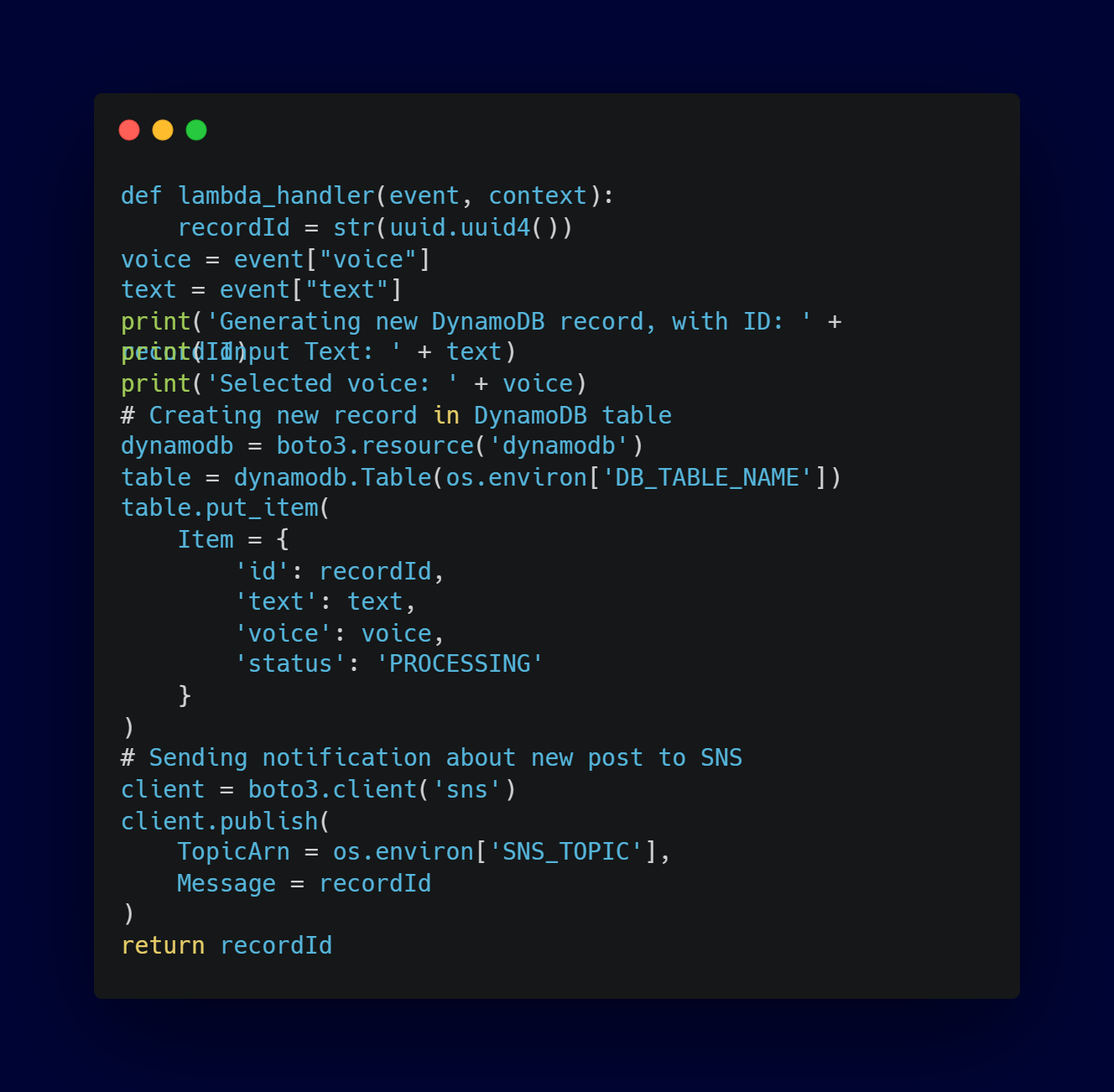
6. Click Deploy
The SNS topic and the name of the DynamoDB table must be known to the Lambda function. You use environment variables to supply these values. This is a great method of passing data to a function without having to explicitly enter values into the function.
1. Choose the Configuration tab to configure the environment variables.
2. In the left navigation pane, choose Environment variables.
3. In the Environment variables section, choose Choose Edit.
Choose Add environment variable.
Key: Enter SNS_TOPIC
Value: Paste the SNS topic you copied earlier in the lab

Choose Add environment variable.
Key: Enter DB_TABLE_NAME
Value: Enter posts
4. Click save
5. Select General configuration from the Configuration tab’s left navigation pane.
6. Select Edit under General configuration.
Set the timer to 10 seconds.
7. Select Save
Now we can test the function
1. Select the Test tab and set up the following information:
Name of the event: Joanna
2. Remove the current code and paste the following code:
{
“voice”: “Joanna”,
“text”: “This is working!”
}
3. Click save
4. Click test

Create a convert to audio Lambda function
1. Go to lambda and choose Create function.
2. Select the Author option and apply the following configurations:
Name of function: ConvertToAudio
Runtime: 3.12 Python
Expand Change default execution role
Execution role: Choose Use an existing role
Existing role: Choose Lab-Lambda-Role
3. Select the Create function by scrolling down.
4. Delete the current code and paste this code :
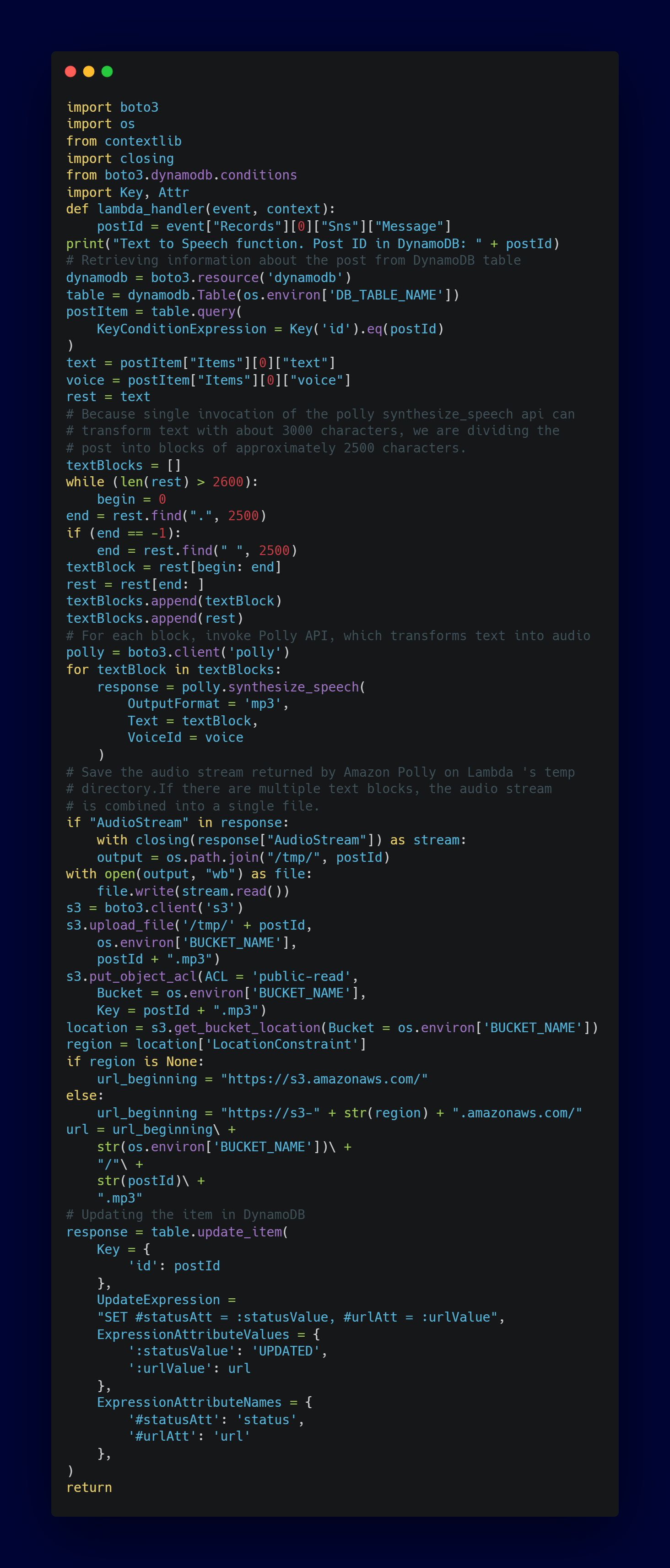
5. Click on Deploy
Similar to the New Post function, you must use Environment variables to specify the services this Lambda function can communicate with.
1. To set up the environment variables, select the Configuration tab.
2. Select Environment variables from the left navigation pane.
3. Select Edit under the Environment variables section.
4. Select “Add environment variable.”
Key: Enter DB_TABLE_NAME
Value: Enter posts
Select “Add environment variable.” again
key: BUCKET_NAME
value: audioposts-7777
5. Select Save.
You must increase the maximum duration of a single code execution to five minutes because the postings that need to be translated can be rather large.
1. Select Edit from the General configuration section.
2. Change the 5-minute Timeout.
3. Select Save
You can now set up the function to run automatically whenever a message is posted to the SNS topic you previously created.
1. Select Add trigger from the Triggers section, then configure:
2. Choose an SNS source.
3. Choose an SNS topic: Choose new posts
4. Select Add

Test the functions
1. Navigate to lambda
2. Select the function PostReader_NewPost.
3. Select the Test

This shows the execution of this function. You can now verify that the remaining stages have finished successfully as well.
1. Go to the DynamoDB
2. Select Explore items from the navigation window on the left.
3. Select your posts.
Since you took the test twice, you should see two entries. There is additionally an entry for the URL because the second execution should have also started the Convert to Audio Lambda function.

If the Convert to Audio feature worked correctly, your S3 bucket should contain an MP3 file.

Create a get post Lambda function
1. go to the lambda page
2. Select the Create function option.
3. Select Author from the menu and make use of the following configurations:
Function name: PostReader_GetPost
Runtime: Python 3.12
Expand Change default execution role
Execution role: Choose Use an existing role
Existing role: Choose Lab-Lambda-Role
4. Select the Create function by scrolling down.
5. Delete the current code and paste the following code :
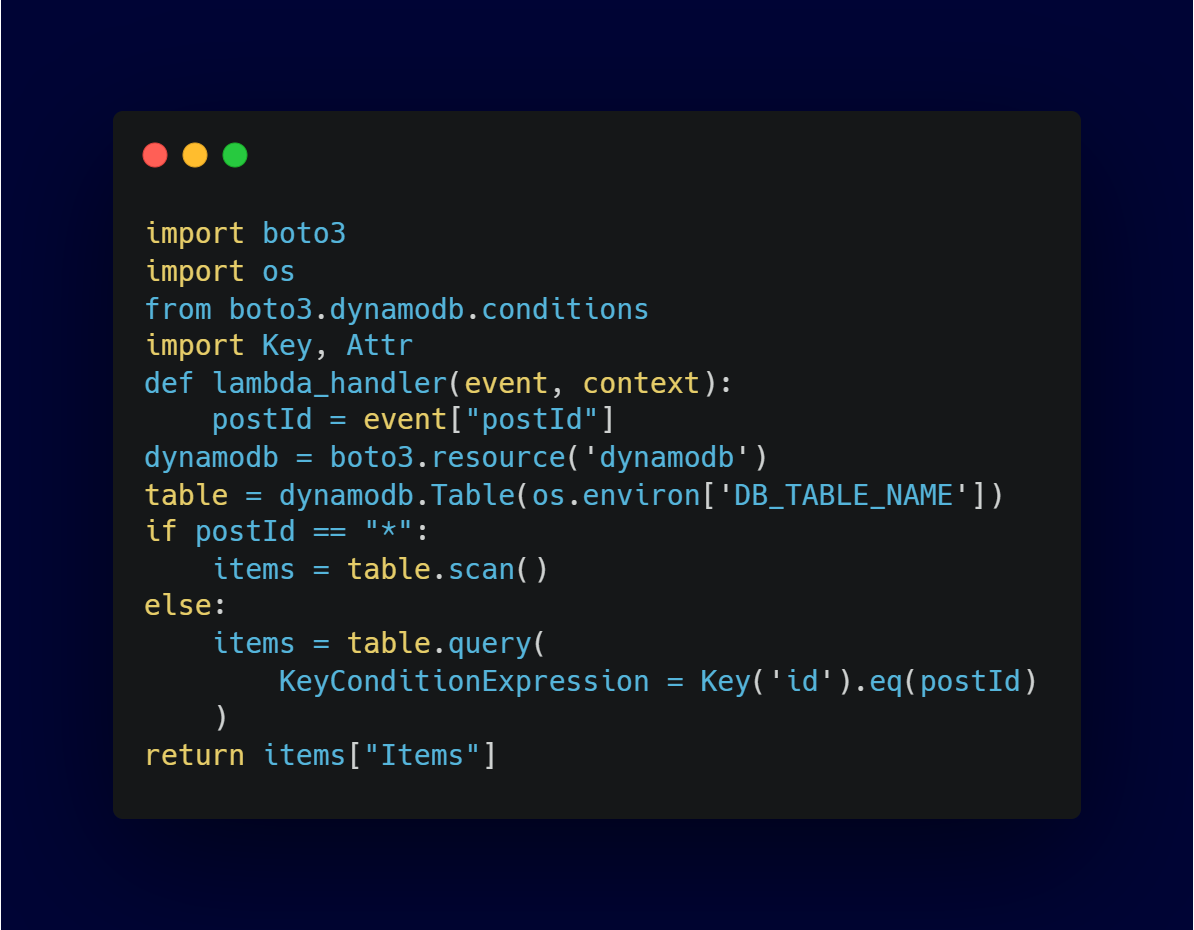
6. Click Deploy
Once more, you must supply the DynamoDB table’s name as an Environment variable for the function.
1. To set up the environment variables, select the Configuration tab.
2. Select Environment variables from the left navigation pane.
3. Select Edit under Environment variables.
4. Select “Add environment variable.”
Key: Enter DB_TABLE_NAME
Value: Enter posts
5. Select Save.
Test the function
1. Create your test event in the Test tab with the following parameters:
Event name: AllPosts
Remove the current code and paste this code:
{
“postId”: “*”
}
2. Click save
3. Click test
You should see Execution result: succeeded similar to the first one
Expose the Lambda function as a RESTful web service
The application logic must be made available as a RESTful web service as the final step to enable simple invocation of the system using a standard HTTP protocol . You use
Amazon API Gateway to accomplish this.
1. navigate to Amazon API Gateway.
2. Select Build in the Rest API panel.
Choose New API
API name: PostReaderAPI
Description: API for PostReader Application
Endpoint Type: Regional
3. Select create API
Two HTTP methods must be created after the API is created.
Setting up the POST method to call the PostReader_NewPost Lambda function is the first step.
1. Select Create method from the Methods window.
2. Select POST as the method type.
3. Select the Lambda Function function that includes PostReader_NewPost.
4. Select Create method.

The API calls the PostReader_GetPost Lambda function for the GET method. Similar to the post method. Similar to the post method
1. Select the / symbol located above POST in the Resources window.
2. Select the Create method from the Methods window.
3. Select GET under Method type.
Select the Lambda Function function that includes PostReader_GetPost.
4. Select Create method.
Configuring CORS is the final step. By using this technique, you can call the API from a website that uses a different hostname.
1. Select the / symbol located above GET in the Resources window.
2. Select Enable CORS from the Resource information box.
3. Select Default 4XX and Default 5XX for Gateway replies.
4. Pick GET and POST under Access-Control-Allow-Methods.
5. Select Save

The post id that should be returned is specified by the query parameter postId, which you are now configuring for the GET method.
1. Select the GET approach.
2. Select Edit from the Method request settings box.
3. Extend the section on URL query string parameters.
4. Select “Add query string.”
5. Enter postId for Name.
6. Select Save.

The API must be set up to map the parameter into the JSON format that the PostReader_GetPost Lambda function expects to receive input data in. You can add
mapping to the Integration Request configuration in order to accomplish this.
1. Select the tab for integration requests.
2. Select Edit from the Integration requests settings window.
3. For Request body passthrough, choose When there are no templates defined (recommended).
4. Extend the templates for mapping.
5. Select “Add mapping template.”
6. Type application/json under Content type.
7. In the Template body field, type:
{
“postId” : “$input.params(‘postId’)”
}
8. Select Save.
9. Select API Deploy.
Step: Select *New Stage*
Stage name: Dev
10. Select Deploy * Copy the invoke URL *
Now we are going to create a new S3 bucket.
1. Go to S3
2. Select “Create bucket” and enter the following information:
Name of the bucket: www-audioposts-7777
4. Select ACLs enabled under Object Ownership.
5. Deselect the option labeled “Block all public access” in the bucket’s Block Public
Access settings. Leave all other choices deselected.
6. Create bucket
Now select the bucket and upload the following files
Index.html – scripts.js- styles.css
Make sure to change YOUR_API_GATEWAY_ENDPOINT with the invoke URL you copied earlier
1. Now Click the Permissions tab at the top of the bucket page.
2. Select the Edit button after swiping down to the Bucket Policy section.
3. In the editor, paste this policy:
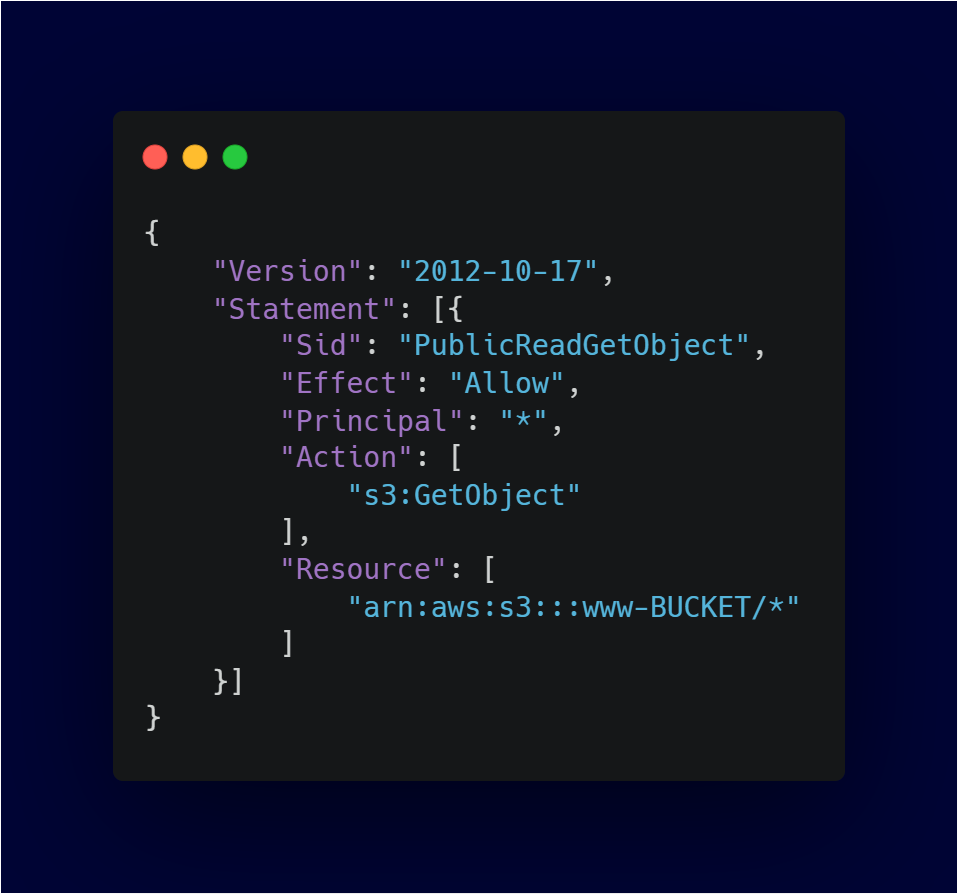
4. Put the name of your www-audioposts-7777 bucket in place of www-BUCKET.
5. Select Save changes.
Lastly, to make the bucket function like a static website, you can enable static website hosting.
1. Select the tab for Properties.
2. Ignore the error about AWS CloudTrail Permission.
3. Select Edit when you reach the section dedicated to hosting static websites.
4. Select “Enable” to host static websites.
Index document: index.html
Error document: index.html

5. Select “Save changes.”

It should look like this

When you write something in the text field and select Say it, your application receives the event. The text is converted into an audio file by the application asynchronously. It may take a few seconds or several minutes to convert the text you supply to an audio file, depending on its size.
To view the posts and their audio files, type the post ID or * in the Search box

Click play button to hear the audio