
Building a Secure Multi-Tier Architecture
As part of the Cloud Mastery Bootcamp, we will be designing a secure multi-tier application that will utilize the following services:
– Amazon CloudFront
– Application Load Balancer
– AWS Certificate Manager
– Amazon SNS
– Amazon EC2
– Amazon KMS
– Amazon S3
– AWS WAF
The general architecture and the AWS services that were used are shown in the diagram below:

Create the Security Groups for EC2
The Security Groups for the EC2 instances, which make up the compute layer, will first be created.
1. Open the EC2 management console and select Security Groups from the menu on the left.
2. Select the default VPC, click “Create Security Group,” give it the name “ALBFrontEnd,” write a description, and click “OK.”
3. Click “Create Security Group” after adding an inbound rule that allows the HTTPS protocol from any location

4. Create the second security group and add a rule allowing HTTP from the “ALBFrontEnd” security group to the second security group, “EC2Backend.” This guarantees that the EC2 instances can only be accessed by traffic coming from the load balancer. Select “Create.”

5. return to the “ALBFrontEnd” security group , remove the current outbound rule, and add a new rule that permits HTTP to the “EC2Backend” security group.

6. Press “Save Rules.”
Create the Encryption Key using KMS
Next, we’ll use KMS to generate the encryption key.
1. Clicking “Create a key” in the Key Management Service console will be our first step.
2. Click next while maintaining the symmetric key.
3. call “MyDataKey” into the key and select “Next.”
4. Check off the box next to your current user in “Key Administrators”:
5. Click next, choose “AWSServiceRoleForAutoScaling” under “Define Key usage permissions,” and pick the same user. Next, click.

6. To generate the key, click “Finish.”
Create the Certificate using Amazon Certificate Manager
We will then use ACM to create the Certificate for the load balancer
1. Click on “Request a Certificate” in the ACM console. We’re going to use the domain name you made previously in the course, so don’t worry about it.
2. Enter the fully qualified domain name for your registered public domain and request a public certificate.
3. As an additional domain name, add “alb..”

4. Click “Request” after selecting “DNS Validation.”
5. Click on the Certificate and select “Create records in Route 53” to enable the creation of CNAME records for each domain after a small pause while ACM populates your domain validation information.

Create the SNS Topic
We will then create the SNS Topic for a later time.
1. Select “Create Topic” from the SNS console. Choose a typical subject.
2. Click “Create Topic” after naming it “MyNotification.”

3. Choose “create subscription,” type in your email address, and choose “email” as the protocol.

4. Select “Create subscription,” then check your email to validate the subscription. You should be able to this after validating the subscription

Create the Subnets, NAT Gateway & the Route table
we will run some commands to create the subnets, NAT gateway and the route table
Create a subnet in us-east-1a
aws ec2 create-subnet –vpc-id vpc-0fc928a7e8285728f –cidr-block 172.31.96.0/20 –availability-zone us-east-1a –tag-specifications ‘ResourceType=subnet,Tags=[{Key=Name,Value=private-1a}]’
Create a subnet in us-east-1b
aws ec2 create-subnet –vpc-id vpc-0fc928a7e8285728f –cidr-block 172.31.112.0/20 –availability-zone us-east-1b –tag-specifications ‘ResourceType=subnet,Tags=[{Key=Name,Value=private-1b}]’
Create a route table in the default VPC
aws ec2 create-route-table –vpc-id vpc-0fc928a7e8285728f –tag-specifications ‘ResourceType=route-table,Tags=[{Key=Name,Value=PrivateRT}]’
Associate both subnets to the route table
aws ec2 associate-route-table –route-table-id rtb-0822416cccaaae089 –subnet-id subnet-087dc5faa33a1a53f aws ec2 associate-route-table –route-table-id rtb-0822416cccaaae089 –subnet-id subnet-02410cba62dcfd78a
Create an elastic IP
aws ec2 allocate-address
Create a NAT gateway
aws ec2 create-nat-gateway –subnet-id subnet-08304c5bb73bca2e6 –allocation-id eipalloc-0288128205ff59e9e
Update the private route table to point to the NAT gateway
aws ec2 create-route –route-table-id rtb-0822416cccaaae089 –destination-cidr-block 0.0.0.0/0 –nat-gateway-id nat-0d548ac643658443d
Create the IAM Role
The IAM role will then be created so that the EC2 instances can access the static data stored in S3.
1. Open the IAM console and select “Create Role” and “Roles.”
2. Choose “EC2” as the use case, then click “Next.”
3. Look up “AmazonS3ReadOnlyAccess” and choose the managed policy option.
4. Click next after doing the same action with “AmazonSSMManagedInstanceCore.”

5. Click “Create Role” after giving your role the name “ec2-ssm-s3.”
Create the S3 Bucket and the Launch Template
After that, we’ll make an S3 bucket to hold our static assets.
1. Select “Create Bucket” from the S3 console.
2. Give your bucket the name “dct-labs-123456”
3. Select “Make Bucket.”
4. Upload the resource download’s “index.txt” file.
5. Select “Create Launch Template” under “Launch Templates” on the EC2 dashboard. Give it the name “MyLT.”
6. Select the t2.micro instance type and use the Amazon Linux 2023 AMI as the AMI image.
7. Select the security group we previously defined, “EC2Backend.”
8. Choose the KMS Key that we previously created under “EBS volumes” and encrypt your disk.

9. Under “instance profile,” select the “ec2-s3-ssm” instance profile that we previously generated.
10. Edit the bucket name in the “user-data-httpd.md” file by opening it, and then paste the code in the “User data” section.

11. select “Create launch template.”
Create an Amazon EC2 Auto Scaling Group
1. Click auto scaling groups in the EC2 administration console.
2. Refer to your ASG as “ASG1,” choose the previous “MyLT” Launch template, and then click the next button.
3. Select the private subnets, private 1a and private 2a, that are part of the default VPC and click next once more.

4. Type “2” in place of each capacity number.
5. Select “Create Auto Scaling Group” after clicking “Next” till you reach the review screen.
Create an Application Load Balancer
The Application Load Balancer will be built and connected to the Auto Scaling Group.
1. Select “Load Balancers” with a right-click to open in a new tab. Choose “create” under the Application Load Balancer after clicking “Create Load Balancer.”
2. Select the public subnets, not the private ones, under mappings for the Availability Zones us-east-1a and us-east-1b by calling the ALB “ALB”! additionally select the ALBFrontEnd security group and eliminate the default path.

3. Select port HTTPS for the listener protocol, add the previously generated certificate, and proceed.


4. Go back to the prior tab in the browser and see how the Autoscaling Group instances are doing. Go back to the load balancer page and select “Create Target Group” after they are operational. The browser tab containing this will open.
5. Select port 80 and HTTP while addressing your target group, “TG1”.
6. Choose “Include as pending below” for both instances, then click “Create target group.”

7. We should be able to choose TG1 if we return to the ALB creation page and reload the target group settings.
8. Select “Build Load Balancer.”
Create the CloudFront Distribution
To add the Route 53 records after the load balancer, we are going to create the CloudFront distribution.
1. Select “Create a CloudFront Distribution” from the CloudFront dashboard.
2. Look for the newly generated ALB under “Origin Domain.” A few settings will change as a result.
3. Replace the origin domain name with the name of your subdomain, such as “alb.learningawswithlab.net.”
4. Set the protocol to “HTTPS only” under “Origin.”

5. Select “Redirect HTTP to HTTPS” under Viewer Protocol Policy.

6. Select “CachingDisabled” under Cache Policy

7. Select “Do not enable security…” under WAF.
8. Enter your domain name under “alternate domain names,” removing the “alb.”
9. Under “Custom SSL certificate,” choose the custom SSL certificate for the root domain.
10. Under the default root object, put “index.html” at the very end and select “Create distribution.”
Include the Custom Headers and Route 53 records
1. Go to the hosted zones section of the Route 53 dashboard and select your custom domain name.
2. Click on Create Record and use the quick create view
3. Choose the CloudFront distribution in the us-east-1 Region and activate the “Alias” switch box.

4. Using the subdomain, create another record that serves as an alias for your Application Load Balancer.
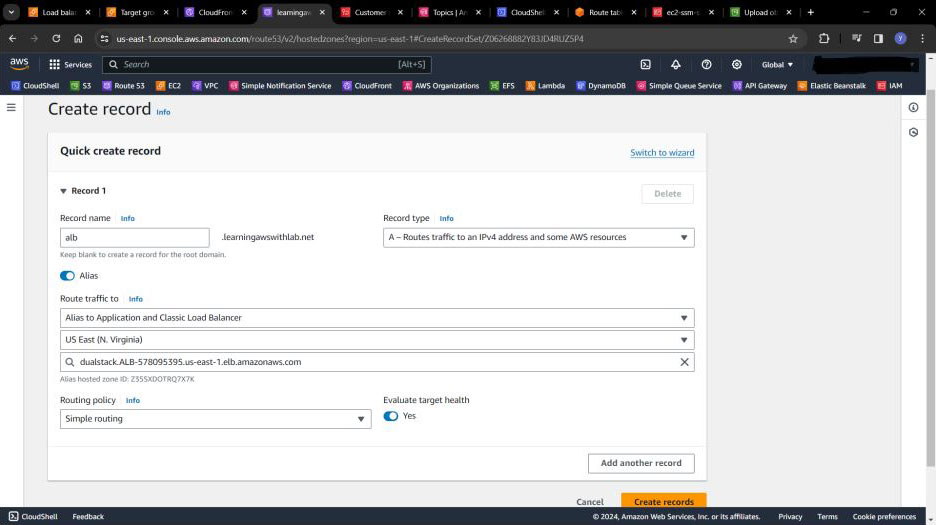
5. Using the custom subdomain name, such as https://alb.learningawswithlab.net, and the HTTPS protocol, you should be able to establish a direct connection to your ALB.

6. You should notice that load balancing is causing the AZ to change if you refresh.

7. You should be able to view the website using the CloudFront distribution if you then establish a connection to the primary domain, such as https://learningawswithlab.net

Add Custom Headers
1. In order to stop users from connecting through the load balancer instead of the CloudFront distribution, we must now provide a custom header.
2. Select the distribution we just created in the CloudFront dashboard. Click Edit after selecting the origin under origins.
3. Enter the following value for the header name “x-Custom-header and for the value “value-123456”
4. click save changes and Select Listeners in the Load Balancer after choosing the listener, select “Manage rules” under “Actions.”
5. Under rule condition types choose “HTTP header”. forHTTP header name insert x-Custom-header. For HTTP value insert value-123456

6. Next, change the last rule by choosing to “Return a fixed response” and removing the forwarding to TG1. Put “Access denied!” in the body of the answer.

7. The message that appears when we attempt to connect directly to the load balancer (https://alb.learningawswithlab.net) is as follows!
Access denied
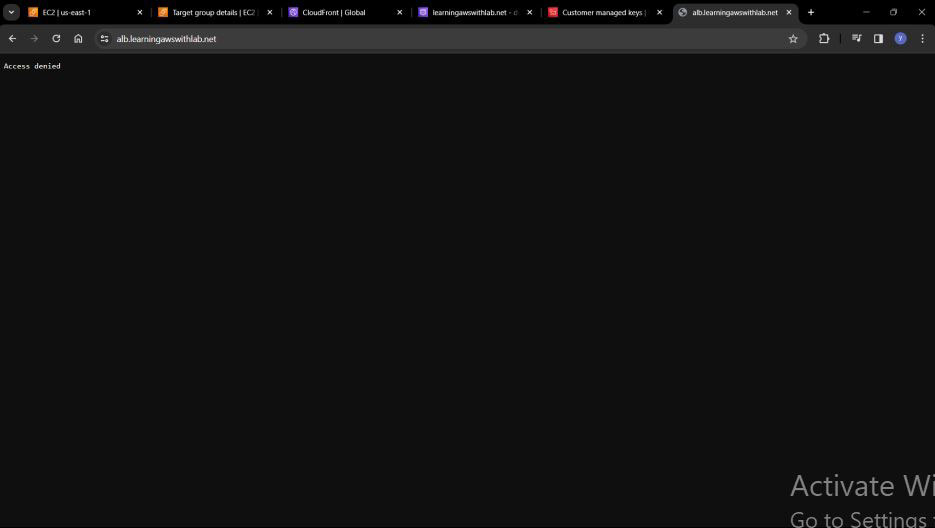
8. The CloudFront distribution should still allow you to access the website with the root domain name, such as https://learningawswithlab.net.

Enable logging for the ALB and CloudFront
In this case, we are setting up an S3 bucket and turning on logs for the CloudFront distribution and the ALB.
1. Create a bucket on S3 with the name “my-logging-bucket-123456”
2. Use the code found in the alb-access-logging-policy.json file to add a bucket policy

3. Access your balancer. Then select “Edit load balancer attributes” from the “Actions”
menu.
4. Press the “Access logs” switch, browse for the bucket
5. Return to S3 and examine the generated bucket. Soon, logs should begin to appear, and we can observe that the permissions policy was made in order for us to permit this to occur.
6. We are about to enable CloudFront logging. Navigate to your distribution, select “General,” then “Edit” under the “Settings” heading. Check the “Standard Logging” box.
7. Type in the prefix “cloudfront” and the bucket that we made for logging.
8. enable ACLs, click the button. Select “Save.”

Enable AWS WAF
We are now turning on AWS WAF.
1. Select “Create web ACL” from the AWS WAF panel.
2. Select “CloudFront distributions” under resource type, then give it the name “MyWebACL.”
3. Choose to add the CloudFront distribution by selecting “Add AWS resources”:
4. Click “Add my own rules and rule groups” under “rules,” name the first rule “Rate100,” and select a rate-based rule under “Type.”
5. Add the rule and set the rate limit to 100. Finish constructing the Web ACL.
6. You will receive an error notice and your browser will stop functioning if you attempt to access the CloudFront distribution after that and reload the page more than 100 times. Use the command found in the aws-cli-commands.md file to use CloudShell to perform the refresh automatically.
