
Handling Rewrites and Redirects using Edge Functions
Lambda@Edge and CloudFront Functions are the two main functionalities that CloudFront Edge Compute provides. With CloudFront Functions, developers may write small JavaScript functions for manipulating requests and answers, authenticating users, and producing HTTP responses at the edge—all essential for customizing the CDN.
These features guarantee scalable performance, quick startup times, and robust security in the CloudFront environment. On the other hand, Lambda@Edge eliminates the requirement for global infrastructure management by enabling code to be run closer to users, improving application performance and lowering latency. Developers may easily improve speed and only pay for compute time used by using Lambda@Edge to deploy web apps globally. With its seamless integration with Amazon CloudFront, AWS Lambda ensures high availability at sites closest to end users while streamlining code management and scalability.
The services that will form the foundation of the workshop are produced by the solution that you will be implementing. A CloudFront distribution, an Amazon S3 bucket, and an IAM role are a few of these.
1.Open this template for CloudFormation
2. Click on upload a template file

3. Scroll to the bottom of the Review page and tick the box that says, “I acknowledge that AWS CloudFormation might create IAM resources with custom names.”
4.At this point, you will navigate to the S3 bucket that our CloudFormation template generated. Let’s first obtain our basic HTML files, which will act as our starting point. Get it here to download: Content of Origin. After storing them on your local computer, extract. All of the basic HTML files that we want to use as Origin material are included in this file.
5. Open your S3 console and look for an edge in your list of buckets. The bucket should be visible there. Take a look at the following picture:

6. Select “Upload” after clicking on the bucket name.
7. Select all of the HTML files that you downloaded earlier “Open”; after that, click
“Upload” on your S3 page.
URI based Redirects
This use case is often used to reroute users who are requesting URIs that the admin does not want them to read or that may not be available at all. For instance, the administrator would prefer that all queries be handled by “/uri-redirect.html” even while a user is submitting a request to “/uri-main.html.”
Create a cache behaviour for this use case
1. Open the console on CloudFront.
2. Click on the Distribution that the CloudFormation template creates; it will be recognized by its description, “Edge Redirect Workshop Distribution”.
3. Select “Create behavior” after selecting the “Behaviors” tab.
4. Type “/uri-main.html” for the “Path pattern” and select “myS3Origin” under “Origin and origin groups”. under “Viewer protocol policy” select “Redirect HTTP to HTTPS”.
For the time being, we can click “Create behavior” at the bottom of the screen and leave the remaining parameters as they are. Your page ought to resemble the illustration below.

Create Lmabda@edge function and publish a new version
1. Open the Lambda Console in the Amazon Region for US-East-1.
2. Make the “Create Function” click. Give the function a name (such as “edge-uri-redirect”) and select “Python 3.9” as the runtime.
3. Choose “Use an existing role” under “Change default execution role” and choose the “edge-redirect-lambda-role” that the CloudFormation template generated.

4. After the function is established, you can add code under “Code source” on the function’s main page. Paste the edge-uri-redirect code into your lambda console’s “Code source” after copying it.
5.Click “Deploy” after pasting your code. Your lambda function code will then be ready to be committed to the service.
6. After your code is properly deployed, you’ll release an updated version for this lambda. As you scroll up the page, the “Actions” button ought to be visible. After selecting it, click “Publish new version”. Give the version description something like “edge-uri-redirect-v1” and hit “Publish” after that.
Associate Lambda function with cloudfront behaviour
1. Return to your “edge-uri-redirect” function in the lambda function console.
2. On the “Trigger configuration” screen, click “+ Add trigger” and select CloudFront. Select “Deploy to Lambda@Edge” after that.
3. In the recently opened window. Choose the distribution that our CloudFormation template generated under “Distribution”. Choose “/uri-main.html” under “Cache behavior” and “Origin request” under “CloudFront event”. Click “Deploy” after checking the “Confirm deploy to Lambda@Edge” box.

Test redirect configuration
1. Open the terminal for CloudShell.
2. To submit an HTTP request against our distribution in our test, we’ll use the curl command. To accomplish that, you’ll need to copy the Distribution domain name from the CloudFront dashboard, which is located in the distribution’s general tab.
Replace the domain name with the one from your distribution by copying and pasting the following command:
curl -v -o /dev/null https://<YOUR-DISTRIBUTION-DOMAIN-NAME>/uri-main.html
3. The result should be similar to this

The URI that the client was redirected to is indicated in the Location header of the HTTP 301 response that was received in response to this request, as can be seen in the output above.
4. Now i’m going to run the command again

This second command differs mostly in the value of the X-Cache header. The redirected response that was cached from the previous request has now been sent to this one.
This results in time and money savings because our Lambda@Edge did not need to activate a second time.
Geo Location Redirects
To reroute the viewer to the appropriate country page of our website, this use case is frequently used. This diagram shows the architecture that will be developed during this lab.

Create a cloudfront cache policy to forward country header
1. Open the console for CloudFront Cache Policies.
2. Select “Create cache policy” under “Custom Policies”.
3. Enter “edge-redirect-cache-policy” as the name on the “Create cache Policy” tab.
Expand “Headers” under “Cache key settings” and choose “Include the following headers.”
4. Next, look for “CloudFront-Viewer-Country” under “Add header” and choose it.
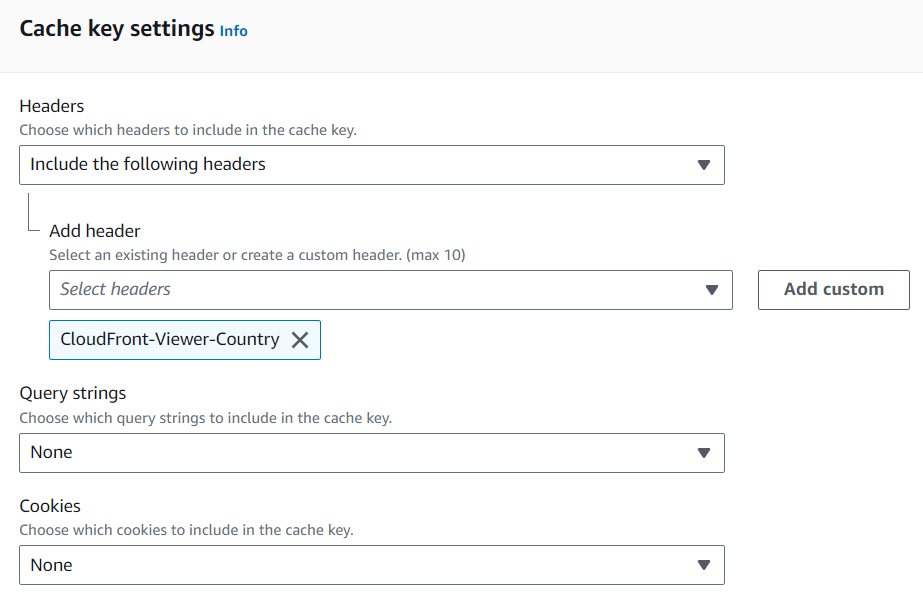
5. Click “Create” after leaving the other parameters as they are.
Create Lambda@edge function and publish a new version
Open the Lambda Console first.
2. Make the “Create Function” click. Give the function a name (such as “edge-geo-redirect”) and select “Python 3.9” as the runtime. Choose “Use an existing
role” under “Change default execution role” and choose the “edge-redirect-lambda-role” that the CloudFormation template generated.
3. After the function is established, you can add code under “Code source” on the function’s main page. Paste the edge-redirect-geo-location code into the “Code source” field of your lambda console.
4.Click “Deploy” after pasting your code. Your lambda function code will then be ready to be committed to the service.
5. After your code is properly deployed, you’ll release an updated version for this lambda. As you scroll up the page, the “Actions” button ought to be visible. After selecting it, click “Publish new version”. Enter a version description (such as “edge-redirect-geo-location”) and select “Publish” after that.
Create a cloudfront behaviour for this case
1. Open the console on CloudFront.
2. Select the CloudFront distribution ID that was generated by the CloudFormation template that we ran during the Environment setup phase.
3. Select “Create behavior” after selecting the “Behaviors” tab.
4. Enter “/geo.html” for “Path Pattern”.
5. Expand the drop-down menu under “Origin and origin groups” and select “myS3Origin”

6. Choose “Cache policy and origin request policy (recommended)” under “Cache key and origin requests” and “edge-redirect-cache-policy,” our policy set on Step 1, under “Cache policy.” For settings, see the image below.

7. Click on create behaviour
Associate lambda function with cloudfront behaviour
1. Return to your “edge-geo-redirect” function in the lambda function console.
2. On the “Trigger configuration” screen, click “+ Add trigger” and select CloudFront. Next, select “Deploy to Lambda@Edge.”

3.In the just opened Windows. Choose the distribution that our CloudFormation template generated under “Distribution”.
4. Choose “/geo.html” under “Cache behavior” and “Origin request” under “CloudFront event”. Click “Deploy” after checking the “Confirm deploy to Lambda@Edge” box. Your configuration ought to resemble the picture below.

Test redirect configuration
To test this particular reroute, we will want consumers located in multiple locations. To accomplish this, launching CloudShell Environments across many AWS regions is a simple method. I will launch one cloudshell in US-EAST-1 and the other in EU-WEST-1
1. After launching cloudshell in US-EAST-1, Curl -v -o /dev/null d29978mpnpdaq9.cloudfront.net/geo.html is the command to run. certainly replace the domain name with the one you obtained from the cloudfront panel. This command should produce the following outcome.

2. If i run the command again, i will get this result

The “X-Cache” response header is the only thing that differs. At this point, a “Hit from CloudFront” should appear.
3. Proceed to the EU-WEST-1 AWS Region’s shell console and do the identical curl command. Now, your response should only contain an HTTP 200 OK rather than an HTTP 301.

Device Redirects
Depending on the type of device the request is coming from, this use case is frequently utilized to lead the viewer to the appropriate page of the website. The architecture and request processes are depicted in the following graphic.

Create a cache policy to forward device type header
1. Open the console for CloudFront Policies.
2. Click “Create cache policy” under “Custom Policies” because you will require a custom policy.
3. Enter “device-redirect-cache-policy” as the name of the policy on the “Create cache Policy” screen.
4. Expand “Headers” under “Cache key settings” and choose “Include the following headers.”
5. Next, look for “CloudFront-Is-Mobile-Viewer” under “Add header” and choose it.

6. Click create policy
Create a Lmabda@edgefunction and publish a new version
Open the Lambda Console first.
2. Make the “Create Function” click. Give the function a name (such as “edge-device-redirect”) and select “Python 3.9” as the runtime.
3. Choose “Use an existing role” under “Change default execution role” and choose the “edge-redirect-lambda-role” that the CloudFormation template generated.
4. After the function is established, you can add code under “Code source” on the function’s main page. Paste Device Redirect code into your lambda console’s “Code source” after copying it.
5.Click “Deploy” after pasting your code. Your lambda function code will then be ready to be committed to the service.
6. After your code is properly deployed, you’ll release an updated version for this lambda. As you scroll up the page, the “Actions” button ought to be visible. After selecting it, click “Publish new version”. Give the version a description, such as “device-redirect-code,” and then select “Publish.”
Create a cloudfront behaviour for this use case
1. Go to the console on Cloudfront
2. Select the CloudFront distribution ID that the CloudFormation template generated.
3. Select “Create behavior” after selecting the “Behaviors” tab.
4. Type “/device.html” in the “Path Pattern” field.
5. Expand the drop-down menu under “Origin and origin groups” and select “myS3Origin”.

6. Choose “Cache policy and origin request policy (recommended)” under “Cache key and origin requests” and “device-redirect-cache-policy,” our policy defined on Step 1 under “Cache policy.”

7. Click create behaviour
Associate lambda function with cloudfront behavior
1. Go to your “edge-device-redirect” function in the lambda function console.
2. On the “Trigger configuration” screen, click “+ Add trigger” and select CloudFront. Select “Deploy to Lambda@Edge” after that.
3. In the recently opened window. Choose the distribution that our CloudFormation template generated under “Distribution”.
4. Choose “/device.html” under “Cache behavior” and “Origin request” under “CloudFront event”. Click “Deploy” after checking the “Confirm deploy to Lambda@Edge” box.

Test redirect configuration
1.Launch CloudShell in US-EAST-1.
2. run this command after replacing the distribution domain name curl -v -o /dev/null https://dp7bu5qtsq4sk.cloudfront.net/device.html
3. The following result should appear

The request above shows a regular answer. This occurred only because our Lambda@Edge function did not identify the device from which you are sending the request as a mobile device, allowing the request to proceed as usual.
4. Now lets run this command curl -v https://dp7bu5qtsq4sk.cloudfront.net/device.html -A “Mozilla/5.0 (iPhone; CPU iPhone OS 6_1_3 like Mac OS X) AppleWebKit/536.26 (KHTML, like Gecko) CriOS/28.0.1500.12 Mobile/10B329 Safari/8536.25”. With replacing the distribution domain name

This time, the answer is an HTTP 301, which indicates a redirect. This occurred as a result of our Lambda@Edge function recognizing that the request’s User-Agent identified it as a mobile device and responding with a redirect.
5. Lets run the first command one more time

The important distinction is that, once more, the x-Cache header indicates a Hit from Cloudfront, indicating that the request was successful from cache and so the function did not need to execute.
URI based Rewrites
You don’t need to build a new cache policy for this use case since you’ll be utilizing CloudFront’s Default Behavior and won’t be basing our function logic on any particular headers. But those might also be used to construct more intricate scenarios, such as adjusting the URI on the backend in place of redirecting. Instead of rerouting the user, you could utilize the examples we provided earlier in this workshop to determine the viewer’s location or device type and get an alternative URI from the backend.

Create cloudfront behaviour for this use case
1. Open the console on CloudFront.
2. Select the CloudFront distribution ID that was generated by the CloudFormation template that we ran during the Environment setup phase.
3. Select “Create behavior” after selecting the “Behaviors” tab.
4. Enter “/uri-rewrite.html” in the “Path Pattern” field.
5. Expand the drop-down menu under “Origin and origin groups” and select “myS3Origin”.
6. Go to the “Create behavior” link at the bottom of the page.

Create a Lmabda@edge function and publish a new version
Open the Lambda Console.
2. Make the “Create Function” click. Give the function a name (such as “edge-uri-rewrite”) and select “Python 3.9” as the runtime.
3. Choose “Use an existing role” under “Change default execution role” and choose the “edge-redirect-lambda-role” that the CloudFormation template generated.
4. After the function is established, you can add code under “Code source” on the function’s main page. Paste the edge-uri-rewrite code into your lambda console’s “Code source” after copying it.

5.Click “Deploy” after pasting your code. Your lambda function code will then be ready to be committed to the service.
6. After your code is properly deployed, you’ll release an updated version for this lambda. As you scroll up the page, the “Actions” button ought to be visible. After selecting it, click “Publish new version”. Give the version description something like “edge-uri-rewrite-v1” and hit “Publish” after that.
Associate lambda function with cloudfront behaviour
1. Go to your “edge-uri-rewrite” function in the lambda function console.
2. On the “Trigger configuration” screen, click “+ Add trigger” and select CloudFront. Select “Deploy to Lambda@Edge” after that.
3. In the recently opened window. Choose the distribution that our CloudFormation template generated under “Distribution”.
4. Choose the Default “/uri-rewrite.html” under “Cache behavior” and “Origin request” under “CloudFront event”. Click “Deploy” after checking the “Confirm deploy to Lambda@Edge” box.

Test redirect configuration
1.Launch cloudshell in US-EAST-1
2.Run the command curl -v -o /dev/null https://dp7bu5qtsq4sk.cloudfront.net/uri-rewrite.html. After replacing the distribution domain name
3. The following result will appear

This request demonstrates the direct answer to our request with an HTTP 200 OK, indicating that the material was served rather than being redirected. Nevertheless, this page has HTML produced to indicate that the information being served is the rewritten version rather than the original.
Dynamic Geo Location Redirects
Using Lambda@Edge to handle redirect use cases is effective when the redirected response is cached and subsequently provided to other users. CloudFront Functions can better handle this if the redirected response is going to be dynamic and depends on several possible values of the information received from the request. This is because employing CloudFront Functions is a better fit for this use case; if the redirected answer is dynamic, the Lambda@Edge function will be invoked frequently, increasing expenses along the way.

Create the origin request policy
1. Open the console page for CloudFront Origin Request.
2. Press the “Create origin request policy” button. Give “edge-geo-cff” a name.
3.Go to “Origin request settings” by scrolling. Then select “Include the following headers” under “Headers” and “CloudFront-Viewer-Country” under “Add header”.

4. Click create
Create cloudfront behavior with the origin request policy
1. Open the console on CloudFront.
2. Select the CloudFront distribution ID that was generated by the CloudFormation template that we ran during the Environment setup phase.
3. Select “Create behavior” after selecting the “Behaviors” tab.
4. Enter “/cff-geo.html” in the “Path Pattern” field.
5. Expand the drop-down menu under “Origin and origin groups” and select “myS3Origin”.

6.Under “Origin request policy,” choose our policy made on Step 1 (edge-geo-cff), and under “Cache key and origin requests,” pick “Cache policy and origin request policy (recommended)”.
7.Go to the “Create behavior” link at the bottom of the page.

Create cloudfront function
1. Select “Create function” from the CloudFront Function console page.
2. Give the function a name such as “edge-geo-cff”. Select “Create function” by clicking. You can add, modify, and publish your function code on the Function page, which you should now be at. As seen in the following image, you should have three tabs. The “Build”, “Test”, and “Publish” tabs are these.
3. Click “Save changes” after adding the edge-geo-cff code block under the “Build” and “Development” tabs.
4. After the code modifications have been saved, select “Publish function” from the “Publish” tab. This will enable the development-stage code to transition to the live stage. 5. Select “Add association” under “Associated distributions”. Select “Viewer request” for “Event type” and “/cff-geo.html” for “Cache behavior” in the new window after selecting the distribution made by CloudFormation. In the end, select “Add association”

Test redirect configuration
1.Launch cloudshell in US-EAST-1 and EU-WEST-1
2. Run this command curl -v -o /dev/null dp7bu5qtsq4sk.cloudfront.net/cff-geo.html in US-EAST-1 after replacing the distribution domain name
3. The result should be like this

The response for this request is HTTP 302 Found. A legitimate browser would have then opened the /cff-geo-en-us.html URL and loaded the page in response to this request.
4. Lets run the same command in the other region

The geo.html page was sent to the user despite the request receiving an HTTP 200 response since it was determined by the function logic that the request did not originate from the United States.
Cookie Based Redirect
This redirect scenario aims to determine whether the incoming request has previously set cookies, which our backend application can utilize to identify that specific user. If not, the request will be redirected to a sign-in page.
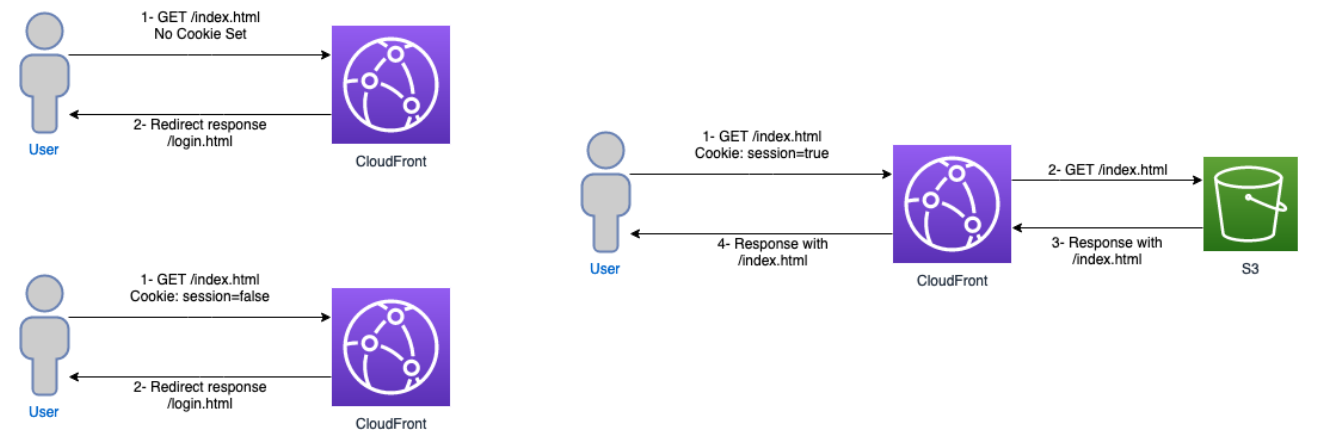
You will be using CloudFront Functions to do this because the scenario may have a wide range of variables that can be assessed, and you would not want those to be cached in CloudFront. This implies that each time a request arrives at a CloudFront Edge Location, this Function will be activated.
Create cloudfront function which will evaluate cookie value
1. Launch the Console on CloudFront. Select “Create function” after going to “Functions”.
2. Enter “edge-cookie-redirect” as the function name on the “Create function” screen, then click “Create function.”
3. You should now be able to add, amend, and publish your function code on the Function page.
4. Add the edge-cookie-redirect code block under the “Build” and “Development” tabs.
5. What should appear under your “Development” tab after pasting the code is shown in the following image. Next, select “Save changes.”

6. After saving the code modifications, select “Publish function” from the “Publish” tab. This will enable the development-stage code to move to the live stage.
Associate the function with cloudfront cache behavior
1. We will select “Add association” while we are still in the Publish tab of our function.
2. Choosing the distribution made by our CloudFormation template in the first box, selecting “Viewer request” under “Event type” and “Default” under “Cache behavior” before clicking “Add association”

Add a login cache behavior
1. Open the Console on CloudFront
2. Open the distribution you made using our CloudFormation template. Select “Create behavior” from the “Behaviors” tab.
3. Type “login.html” under “Path Pattern,” then select “myS3Origin” under “Origin and origin groups.” Choose “Redirect HTTP to HTTPS” under “Viewer protocol policy”. Click “create behavior” after leaving the remaining parameters as they are.

Test the redirect
1.Launch cloudshell in US-EAST-1
2. Run this command curl -v https://dp7bu5qtsq4sk.cloudfront.net after replacing distribution domain name
3. This should be the outcome

The response itself comes first, and it reroutes the user to our login.html page. The second is the “X-Cache” header, which displays the answer from our cloudfront module. Using any browser, you can test this and notice that we navigate to the login page as follows.

Testing a request that has a bogus session cookie. In order to simulate having an application-set cookie—which is not necessary—you will be sending a request to our distribution in this section. The logic will interpret this as a user who does not have a valid session. This command will be executed at https://dp7bu5qtsq4sk.cloudfront.net: curl -v –cookie “session=false”. The outcome ought to resemble this.

Given that our session cookie is set to false, this answer appears to be similar to the one you saw earlier, which is to be expected as it should take the user to our login page.
4. examining a request that has a working cookie. The command curl -v –cookie “session=true” dp7bu5qtsq4sk.cloudfront.net will be executed. The following should be the outcome:

As you can see, this request was not diverted; rather, it proceeded to the home page and gave the user the desired content.