
Automating Incident Response Workshop
When a breached instance is discovered, we plan to automatically launch an incident response strategy. There will be a couple different types of automatic induction routines, one that uses a single lambda function and the other that uses step functions.
Amazon GuardDuty will be used in the workshop to identify potential threats. But additional signs of compromise or detection from an Antimalware-EDR solution can also cause the same security automations to be activated on instances.
Firstly, we are going to launch a CloudFormation template.
Launch a CloudFormation template
1. Go to CloudFormation
2. Click on create stack
3. In Specify template, choose upload a template file and upload cfn json file

4. Click Create stack after checking the box showing the template will create IAM roles.
Create a Security Group for isolation and forensics
1. Go to security groups
2. Click on create a security group
3. Choose the VPC that was created by Cloudformation
3. Call it ForensicsSG and add the following inbounds rules:
RDP TCP 3389 Source (My IP) Description : RDP for IR team
SSH TCP 22 Source (My IP) Description : SSH for IR team

4. Click Create
Create an IAM policy
1. Go to IAM and click create policy
2. Call it Deny-termination-of-isolated-instances
3. Add the code below
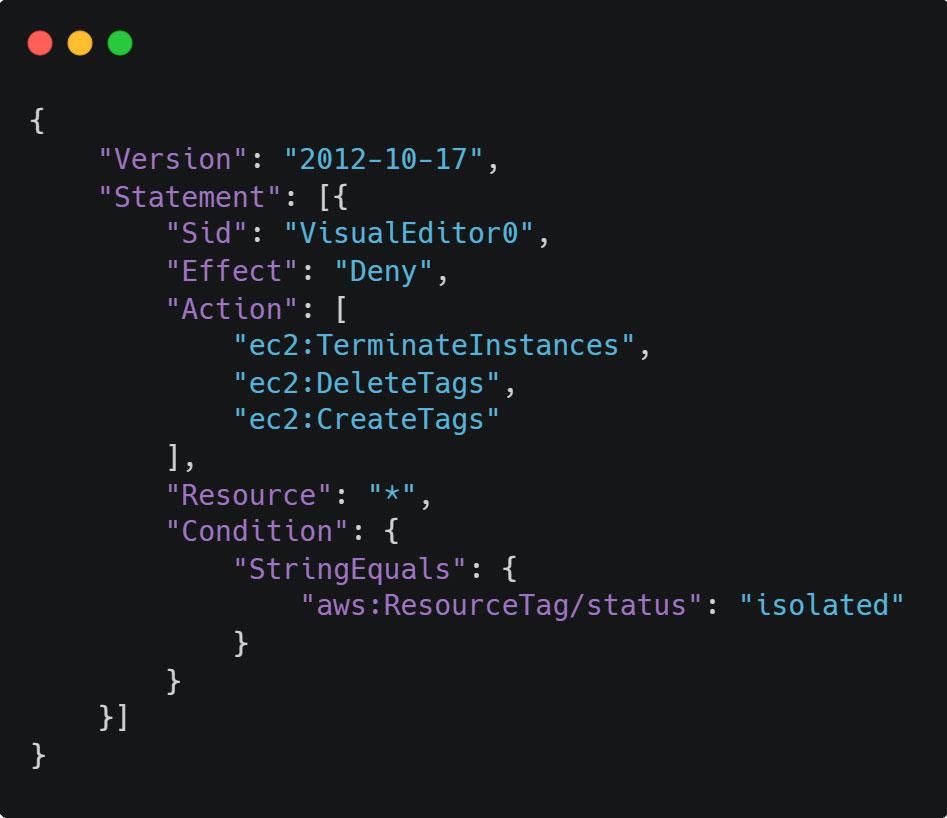
4. Click create policy
Create a Group
1. Call it ec2-users
2. Attach two policies to the group
The AmazonEC2FullAccess AWS Managed Policy
The newly created Deny-termination-of-isolated-instances
3. Create group
Create a user
In the IAM Console go to the user and give it a password, create an IAM user called testuser and add the user to the ec2-users group.

the difference between the two methods (Lambda function and Step Function) in the automated incident response action are:
The simplest approach to carry out the remediation on a single AWS Lambda function, however it has the drawback that we can’t wait for jobs like snapshots to finish because we risk exceeding the Lambda timeout of 15 minutes.
Using Step Functions on a State Machine: this is a more complicated but adaptable alternative since it allows us to organize the response configuration. The State Machine has no restrictions on the acts it can perform or the amount of time it can run for.
Single Lambda response
We are going to use the Lambda function response. The function will do the following steps:
● Create an IAM policy and attach it to the IAM role that the Lambda function will assume for the automated responses.
● Create the Lambda function.
● Test the Lambda function.
● Create an EventBridge rule that will call the Lambda function based on the GuardDuty findings.

Create IAM Policies & Roles
1. Go to IAM policy and click create policy
2. In the policy editor click on json and past this code

3. Call it ec2instance-containment-with-forensics-policy then create Create a Role
1. Go to role and click on create roles
2. Choose lambda as a use case
3. Attach ec2instance-containment-with-forensics-policy policy and create
Create Lambda function
1. create a lambda function and call it ec2instance-containment-with-forensics
2. Choose Python 3.9 for the runtime.
3. Choose the execution role ec2instance-containment-with-forensics

4. Create function
5. Choose a 15-minute timeout in the General Configuration.
6. Under the Configuration tab, add the following environment variables to the Lambda function:
Environment variables:
Key: ForensicsSG
Value: sg-(the ID of your Forensics SG)
7. Add the following code in the code section:
import boto3, json
import time
from datetime import date
from botocore.exceptions import ClientError
import os
def lambda_handler(event, context):
# Copyright 2022 – Amazon Web Services
# Permission is hereby granted, free of charge, to any person obtaining a copy of this
# software and associated documentation files (the “Software”), to deal in the Software
# without restriction, including without limitation the rights to use, copy, modify,
# merge, publish, distribute, sublicense, and/or sell copies of the Software, and to
# permit persons to whom the Software is furnished to do so.
# THE SOFTWARE IS PROVIDED “AS IS”, WITHOUT WARRANTY OF ANY KIND, EXPRESS OR IMPLIED,
# INCLUDING BUT NOT LIMITED TO THE WARRANTIES OF MERCHANTABILITY, FITNESS FOR A
# PARTICULAR PURPOSE AND NONINFRINGEMENT. IN NO EVENT SHALL THE AUTHORS OR COPYRIGHT
# HOLDERS BE LIABLE FOR ANY CLAIM, DAMAGES OR OTHER LIABILITY, WHETHER IN AN ACTION
# OF CONTRACT, TORT OR OTHERWISE, ARISING FROM, OUT OF OR IN CONNECTION WITH THE
# SOFTWARE OR THE USE OR OTHER DEALINGS IN THE SOFTWARE.


8. Click deploy
Test the Lambda Function
1. Create the test event given below for your lambda function:

2. Call it GuardDutyViaCWE
3. copy the following JSON event:

To test the Step Function response, a GuardDuty discovery is simulated using this JSON event. You will set up the automated response in the following
section once this has been tested.
A few details related to the environment must be modified:
4. Replace the following in the code:
Replace the AccountID for yours
Replace the Instance ID with the ID of the BasicLinuxTarget instance deployed by the CloudFormation template.
5. In the test event, paste the revised JSON:

Check the status before executing: Verify the instance “BasicLinuxTarget”‘s current state using the EC2 console.
Can you answer the following questions?
Which Security Group does it have?
Sg-0867e01c02c91750d
Which tags does it have ?
aws:cloudformation:stack-id
arn:aws:cloudformation:us-east-1:744763848951:stack/AutomatedIncidentResponseWorkshop-GuardDutyTesterTemplate-QZW60ODFZEWP/96be3800-1481-11ef-90aa-12
99dc725379
aws:cloudformation:logical-id BasicLinuxTarget Name BasicLinuxTarget
aws:cloudformation:stack-name
AutomatedIncidentResponseWorkshop-GuardDutyTesterTemplate-QZW60ODFZEWP
status isolated
Is there any snapshot related to the instance?
yes
6. Click on test button
7. Check the status following execution: Verify the instance “BasicLinuxTarget”‘s current state using the EC2 console.
Now we going to answer the same questions
Has the Security Group changed?
yes it has
Have the tags changed?
no
aws:cloudformation:stack-id
arn:aws:cloudformation:us-east-1:744763848951:stack/AutomatedIncidentResponse
Workshop-GuardDutyTesterTemplate-QZW60ODFZEWP/96be3800-1481-11ef-90aa-12
99dc725379
aws:cloudformation:logical-id BasicLinuxTarget
Name BasicLinuxTarget
aws:cloudformation:stack-name
AutomatedIncidentResponseWorkshop-GuardDutyTesterTemplate-QZW60ODFZEWP
status isolated
Has any new Snapshot been created?
Yes
Log in with a different Internet browser or using private mode, use the link on the IAM Dashboard (as seen below) and verify if you can delete the EC2 with the IAM user testuser that you created during the Setup steps.
Are you able to delete the instance?
No

Create EventBridge Rule
1. Navigate to the EventBridge service and choose Rules under the Buses section.
2. Select “Create Rule.”
3. Put a description for the rule and call it gd-compromised-instance-remediation.
4. Choose Rule using a pattern of events, and then Next
5. Copy the following event pattern and select Custom pattern in the Creation method section:


6. Click on next
7. Choose the Lambda as the target that we previously tested, ec2instance-containment-with-forensics.

Create EventBridge Rule
8. Click create
Step Functions response
Here we are going to implement an automated incident response using Step Function.
The pros of using this method are:
● There is no downtime for the tasks to be completed.
● Nearly all of the AWS Services’ API requests are implemented and ready to use right now, without requiring any code.
● Definition of a graphical workflow
● Greater control over the various routes
The steps we will perform in this section are:
● Deploy a CloudFormation template, and it will generate all the required files.
● To receive email notifications, accept the SNS subscription.
● Put the State Machine to the test.
● Make an EventBridge rule that, in response to the GuardDuty discoveries, will invoke the State Machine.
This alternative’s architecture looks like this:

This is the graphical workflow in Step Function would look like:

Deploy the CloudFormation stack
1. Navigate to CloudFormation and click create a stack
2. Choose upload a template file and upload “IRWorkshop-StepFunctionsResponse” file
3. Call it Workshop-OR-StepFunction
4. Enter a valid email address
5. Czech the “acknowledge” box and create the stack
SNS subscription
When the CloudFormation stack is created, you will receive a confirmation email at the address you provided when deploying the template. Click on the email and confirm the SNS subscription.

Test the Step Functions
1. Navigate to the Step Functions service, then pick the newly generated PREFIX_StateMachine name under States machines
2. Choose the option to begin execution
3. Copy the following JSON event to a notepad
To test the Step Function response, a GuardDuty discovery is simulated using this JSON event. You will set up the automated response in the following section once this has been tested.

Replace the Account ID with your ID.
Replace the ID of the BasicLinuxTarget instance that the CloudFormation template deployed for the Instance ID.
4. Paste the updated code in the input field

5. Check the situation before executing: Verify the instance “BasicLinuxTarget”‘s current state using the EC2 console.
Can you answer the following questions?
Which Security Group does it have?
Which tags does it have ?
Is there any snapshot related to the instance?
6. Click the “Start execution” button.
7. Verify status after execution: find out the current state of the instance “BasicLinuxTarget” using the EC2 console.
Now let’s answer the same questions
Has the Security Group changed?
yes
Have the tags changed?
no
Has any new Snapshot been created?
yes
Log in with a different Internet browser or using private mode, use the link on the IAM Dashboard (as seen below) and verify if you can delete the EC2 with the IAM user testuser that you created during the Setup steps.
Are you able to delete the instance?
No

8. Try the State Machine with different levels of severity Proceed as before, but update the JSON event’s severity field from 8 to 7. Is the workflow executed still the same?
The answer should be no as it doesn’t work
Create Eventbridge Rule
1. Navigate to the EventBridge service and choose Rules under the Buses section.
2. Select “Create Rule.”
3. Add a description and give the rule the name gd-compromised-instance-remediation.
4. Choose Rule using a pattern of events, and then Next
5. Select Custom pattern in the Creation technique box, then copy and paste the following event pattern:
To detect outgoing anonymous (TOR) connections—which typically signify the presence of malware attempting to reach the host’s command and control or cryptocurrency mining operations—define the custom event pattern with the following content:


6. select Next.
7. Choose the Step Functions state machine on the AWS service, followed by the state machine that we tested before to PREFIX_StateMachine as the destination.
8. Click create
Configure Automated Response
This section we will learn how to utilize GuardDuty to ingest sample findings and use those findings as input for the automated incident response procedure.
A RedTeam instance in the environment will produce GuardDuty findings.
Currently we have 5 findings

Test Automated Response
Launch a Linux instance, create a new Secure Group (SG) that permits SSH (22) access from your IP address or from anywhere, and execute the following command to call the fake domain that was created in our threat intelligence feeds and is used to test Command & Control Findings:
dig GuardDutyC2ActivityB.com any
Wait for 15 – 20 minutes for Guard duty to generate the findings
