
Working with EBS and EFS
As part of the Cloud Mastery Bootcamp, in this project I’m configuring AWS resources for file management and storage. To manage access to EC2 instances, a security group must first be established. Two instances, each connected to this security group, are started in separate availability zones. These instances are given EBS volumes, one of which is formatted and mounted as a persistent storage solution. After that, EFS is configured to enable safe file sharing between instances using NFS and EFS utilities. Lastly, object storage is achieved with S3, which demonstrates file uploading, downloading, and safe file retrieval through the use of AWS CLI commands/ cloudshell and pre signed URLs
We need to create a security group first. We will call it StorageLabs. Run this command on cloudshell
aws ec2 create-security-group –group-name StorageLabs –description “Temporary SG for the Storage Service Labs”

Then will add SSH inbound rule to it
aws ec2 authorize-security-group-ingress –group-name StorageLabs –protocol tcp–port 22 –cidr 0.0.0.0/0

Next, we will launch two instances. one in us-east-1a and the other in us-east-1b by running these commands
aws ec2 run-instances –image-id ami-0440d3b780d96b29d –instance-type t2.micro–placement AvailabilityZone=us-east-1a –security-group-ids sg-0bf32134cf7b0949c

aws ec2 run-instances –image-id ami-0440d3b780d96b29d –instance-type t2.micro–placement AvailabilityZone=us-east-1b –security-group-ids sg-0bf32134cf7b0949c

Now through the console we will create a 10g gp2 EBS volume in us-east-1a

Next we will connect to the instance in us-east-1a and run sudo lsblk -e7command to list the block devices on the instance

Now we will attach the EBS volume to the instance and run the command again
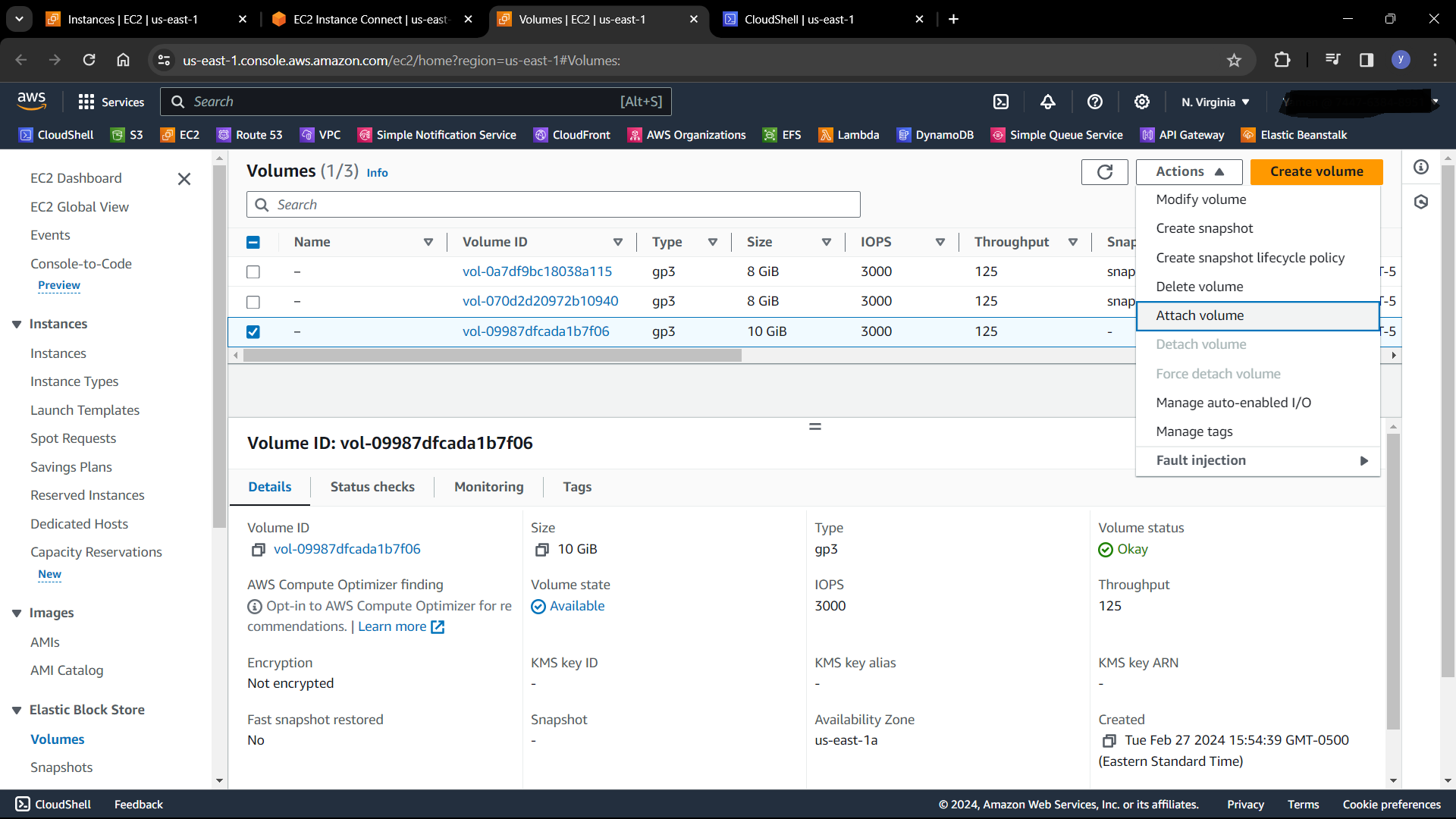

We will go back to instance connect and run the command again.

Now we will create a filesystem and mount the volume In cloudshell run this command to create a filesystem sudo mkfs -t ext4 /dev/xvdf
Then, create a mount point for the EBS volume by running this command sudo mkdir /data
Then, mount the EBS volume to the mount point sudo mount /dev/xvdf /data
We will make the volume persistent by running this sudo nano /etc/fstab
Then paste /dev/xvdf /data ext4 defaults,nofail 0 2 And save the file
Next we will create an EFS filesystem. But before this we will edit the security group to allow NFS protocol.
In cloudshell run this command to edit the security group
aws ec2 authorize-security-group-ingress –group-id sg-0bf32134cf7b0949c –protocoltcp –port 2049 –source-group sg-0bf32134cf7b0949c
Now through the console we will create an EFS filesystem. Then update the mount targets for each AZ using the StorageLabs security group.

Now we will connect to both instances and run the following commands mkdir ~/efs-mount-point to create an EFS mount point sudo yum -y install nfs-utils to install EFS client
sudo mount -t nfs4 -onfsvers=4.1,rsize=1048576,wsize=1048576,hard,timeo=600,retrans=2,noresvportfs-071a21af8db1513b2.efs.us-east-1.amazonaws.com:/ ~/efs-mount-point to mount using the EFS client
Now we will create a file called testfile.txt in the filesystem after changing directory to /efs-mount-point by running Sudo touch testfile.txt
Then will add a file system policy to enforce encryption in-transit

After enforcing encryption in transit, we will unmount after changing out of efs-mount-point by running sudo umount ~/efs-mount-point
Then we will try to mount again using the EFS client

We get access denied. Because we enforced encryption in transit.
Now we will mount using EFS utils. Run this on both instances to install EFS utils sudo yum install -y amazon-efs-utils
Then run this to mount using the EFS utils sudo mount -t efs -o tls fs-071a21af8db1513b2.efs.us-east-1.amazonaws.com:/ ~/efs-mount-point

And it works
Now we will create an S3 bucket and will call it buckettest101. Then we will upload an object using the s3api after changing to the bucket path.
aws s3api put-object –bucket buckettest101 –key testfile.txt –body/home/cloudshell-user/testfile.txt
If we go to the bucket we will see the uploaded file

Then we will download the object
aws s3api get-object –bucket buckettest101 –key testfile.txt/home/cloudshell-user/testfile.txt
Or we can download the object using the presigned URL
curl -o /home/cloudshell-user/testfile.txt “$(aws s3 presign s3://buckettest101/testfile.txt–expires-in 3600)”
